A well-designed WooCommerce shop page helps attract customers and increase sales. A confusing layout can push buyers away, making it harder for them to find products. StoreBuild offers a simple way to create a clean, user-friendly shop page without the hassle.
Whether setting up a new store or improving an existing one, having a clear structure improves shopping experiences. From product images to navigation, every detail plays a role in keeping visitors engaged.
A well-organized shop page makes browsing easy and helps customers find what they need quickly. StoreBuild allows you to customize layouts, highlight key products, and create a seamless buying journey.
In this blog, you’ll learn how StoreBuild simplifies WooCommerce shop page design to help boost conversions. If you’re looking to improve your store’s performance, now is the time to take action. Let’s explore how StoreBuild can help you create the perfect shop page.
Methods to Design Your WooCommerce Shop Page
WooCommerce offers several ways to customize your shop page, from beginner-friendly options to advanced coding techniques. Below are effective methods, along with their advantages and challenges.
1. Using Page Builders (StoreBuild)
For those looking for an easy way to modify shop pages, the StoreBuild Addons Plugin for WooCommerce provides a user-friendly approach. With drag-and-drop functionality, you can adjust layouts, add product sections, and refine design elements without needing coding knowledge.
2. Customizing the WooCommerce Default Template
While the built-in shop page template in WooCommerce offers considerable flexibility, making manual changes might be difficult. Although it allows for element modification via theme options and WordPress Customizer, significant modifications require the use of other plugins or custom coding.
3. Using Shortcodes
Product grids, categories, and filters can be quickly added to your shop page with shortcodes. Although useful, formatting and placement can be complicated, requiring trial and error to produce a well-organized layout.
4. Using a Custom PHP Template
Making a PHP template gives developers total control over the layout of the shop page. This method allows extensive modifications but requires coding expertise, making it less suitable for beginners.
5. Using WooCommerce Hooks & Filters
Experienced users can apply WooCommerce hooks and filters to modify shop pages at a deeper level. These allow adjustments to product displays and custom content sections but require technical knowledge to implement correctly.
6. Manual CSS Styling
CSS styling is a useful method for fine-tuning colors, fonts, and spacing for small design changes. Because CSS improves looks, structural improvements cannot be made with it alone.
This blog is on utilizing the StoreBuild Addons Plugin to customize WooCommerce shop pages. This plugin is a simple way to make changes that work without requiring technical knowledge.
Why?
Since it’s the simplest and most efficient method! Drag-and-drop features allow you to fully customize your WooCommerce shop page without understanding any code. This method is simple to understand, saves time, and ensures that your store will look beautiful while increasing conversions.
Page builders provide you control without the hassle of alternative solutions, which call for more work or technical knowledge.
Preview of WooCommerce Shop Page
Using the page-building strategy, we will design the shop page to have the same style as the shop page image below. Each element will be placed with care to create a smooth and exciting experience.

Steps to Design a WooCommerce Shop Page
- Step 1: Create a WooCommerce Shop Page Template
- Step 2: Design WooCommerce Shop Page Template
Before we start the main steps when designing a WooCommerce shop page using the Page Builders method, a few essential tools must be installed; if these are already present, it is not necessary.
Essential Tools for Creating WooCommerce Single Product Page
To design and customize a WooCommerce single product page efficiently, the best tools to use are
Elementor: A powerful drag-and-drop page builder that makes it simple to create and modify product pages without knowing any code.
Storebuild: 40 widgets and eCommerce tools are included in this comprehensive WooCommerce toolbox to help you optimise the design and usability of your shop page.
So if you haven’t installed it, install it now and get started.
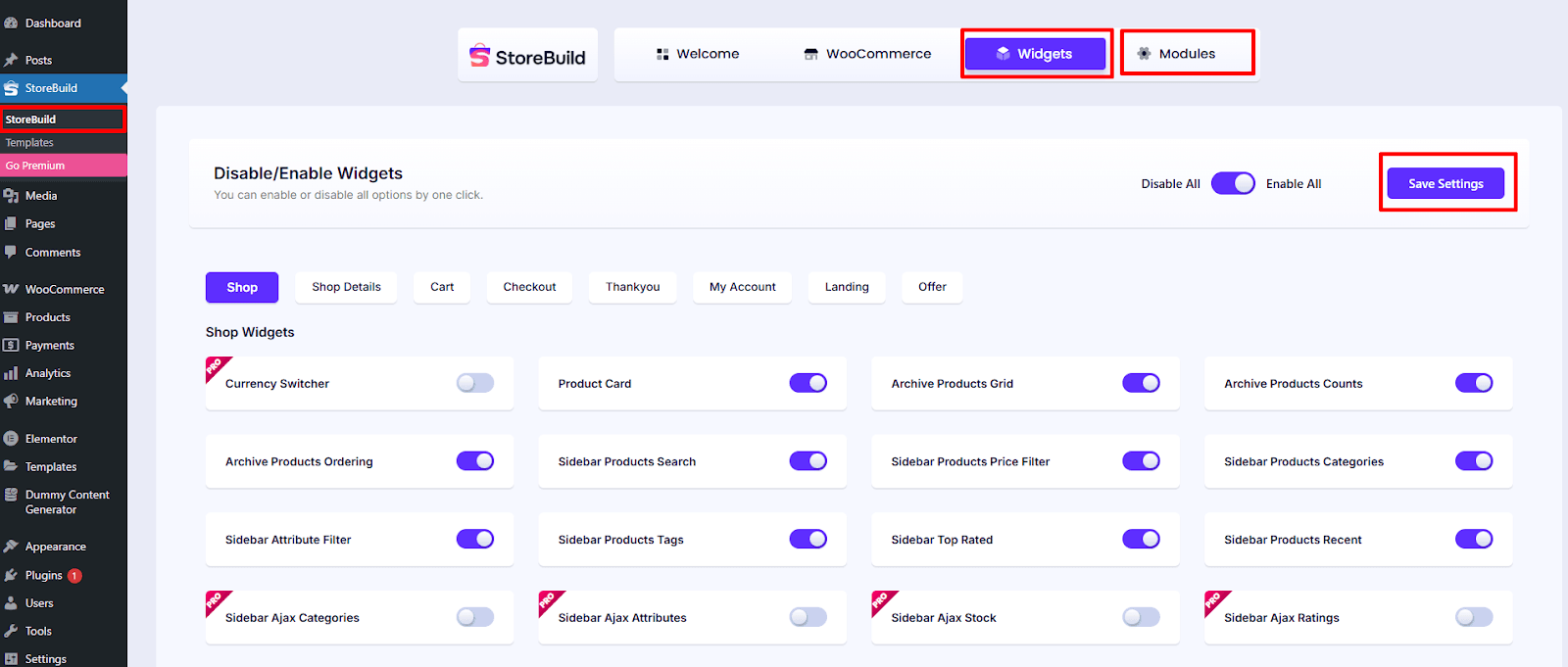
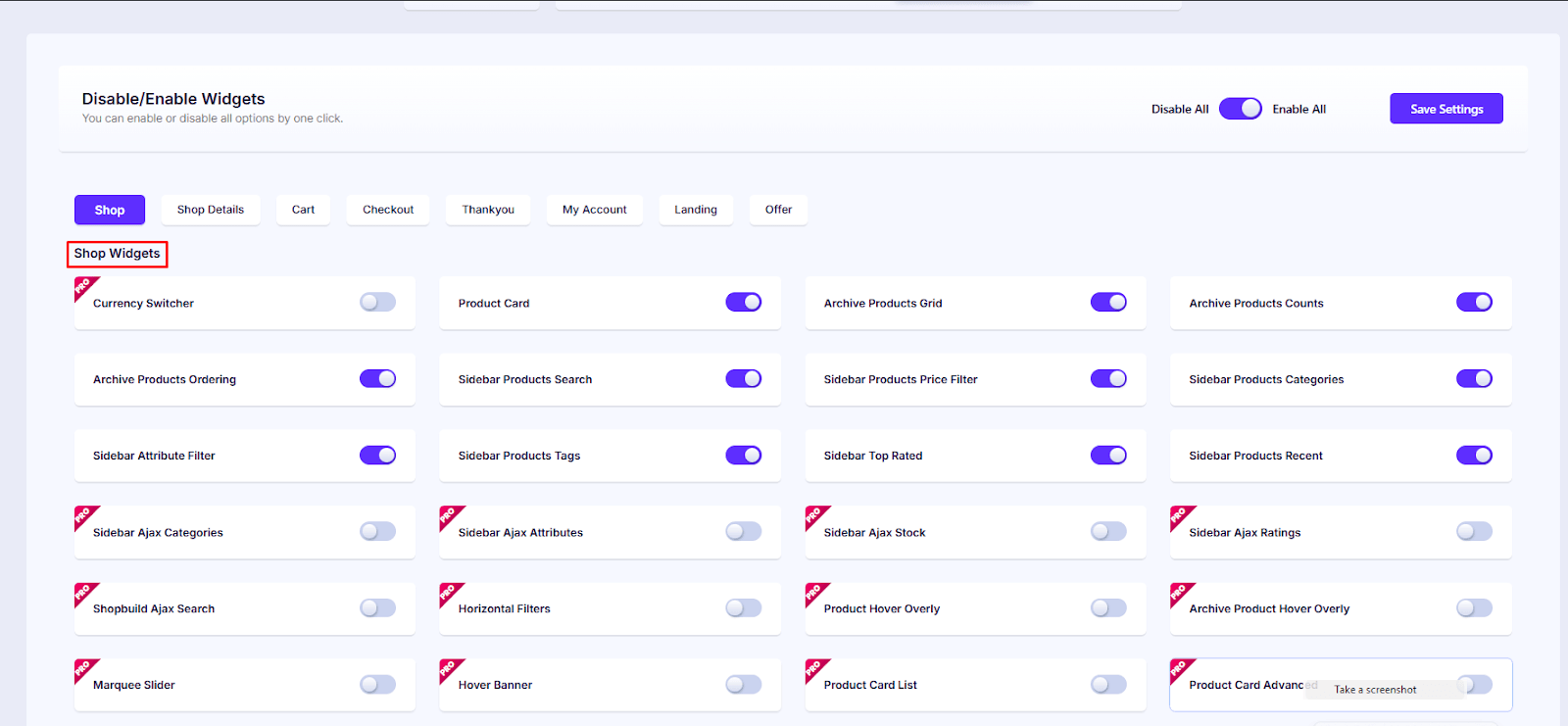
Important Setup Step: Make sure the modules and widgets you want to use are enabled before starting the design.
- Go to StoreBuild >> Widgets & Modules
- Toggle on the necessary widgets & modules
- Click Save Settings
Now, you’re ready to start creating and customizing a completely unique WooCommerce shop page.
Step 1: Create a WooCommerce Shop Page Template
To create a custom WooCommerce Shop page template using StoreBuild, follow these steps:
1. Open StoreBuild
- In your WordPress dashboard, navigate to StoreBuild > Templates.
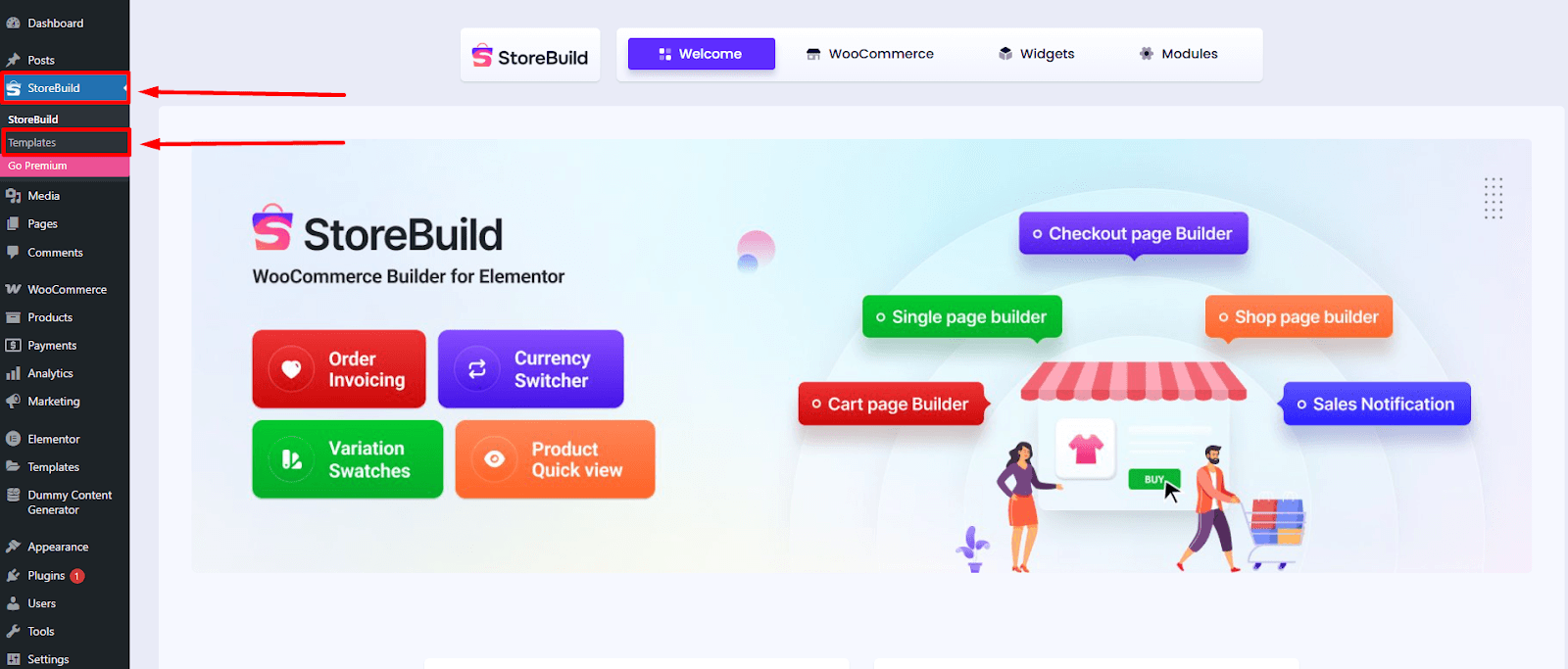
- Click on Add New Template to start creating a new template.

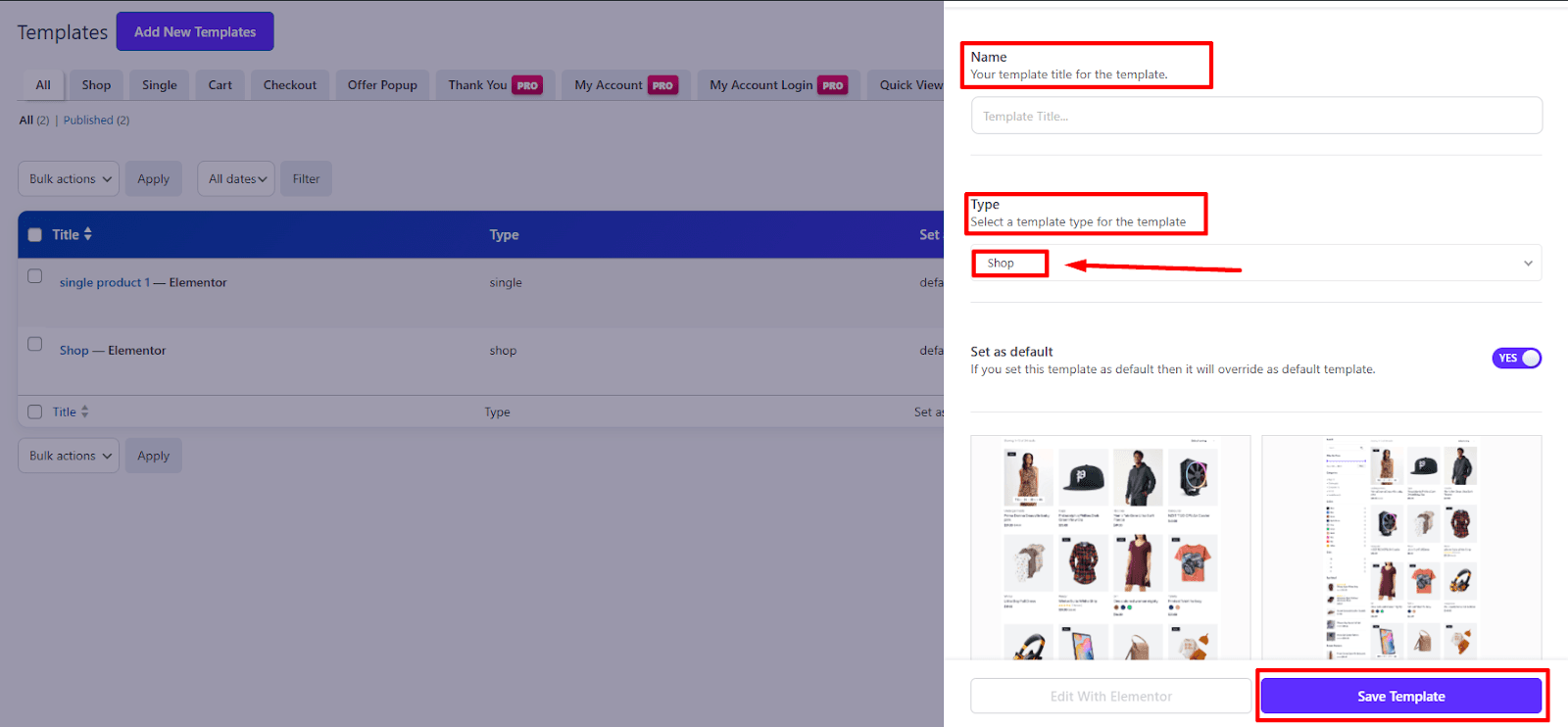
2. Set Up the Template
- Enter a name for your template to keep it organized.
- Choose Type: “Shop” for your WooCommerce Shop page.
- Select a Shop template for your WooCommerce Shop page. Choose a format that best fits your store’s style and product presentation.
- Click Save Template to complete the setup.
- For editing your shop page template, click on Edit with Elementor
- Then your shop page design will open on the Elementor Editor.

Step 2: Design WooCommerce Shop Page Template
Now it’s time to design and style your shop page using StoreBuild widgets. Here’s how to easily design for a better shopping experience:
1. Widgets for WooCommerce Shop page design
After selecting a layout, if you prefer not to use the ready-made shop page from StoreBuild, you have complete freedom to arrange widgets in any order, crafting your WooCommerce shop page exactly as you envision.
With 40+ powerful widgets at your disposal—including Currency Switcher, Product Card, Archive Products Grid, Archive Product Counts, Archive Products Ordering, Sidebar Products Search, Sidebar Products Categories, Sidebar Attribute Filter, Sidebar Top Rated, Sidebar Products Recent, and more—you gain total creative control to build a fully customized, high-converting shop page.
2. Customize Archive Products Grid
- With the Product Card settings, you have complete control over Product Style type, Content Align adjustments. Modify the Product title & price, Align, Hide/Show Category, Enable Rating? & Action Style to craft a design that aligns perfectly with your store’s theme.

- With the Query Product settings, you can include categories & exclude categories. Modify the include or exclude any products, category limit, pagination, and alignment of the product to craft a design that aligns perfectly with your store’s theme.

- With the Product Column settings, you can change the column gap & row gap. Modify the column for desktop, column for large, column for Tablet, column for mobile, column for extra small, and alignment of the column to craft a design that aligns perfectly with your store’s theme.

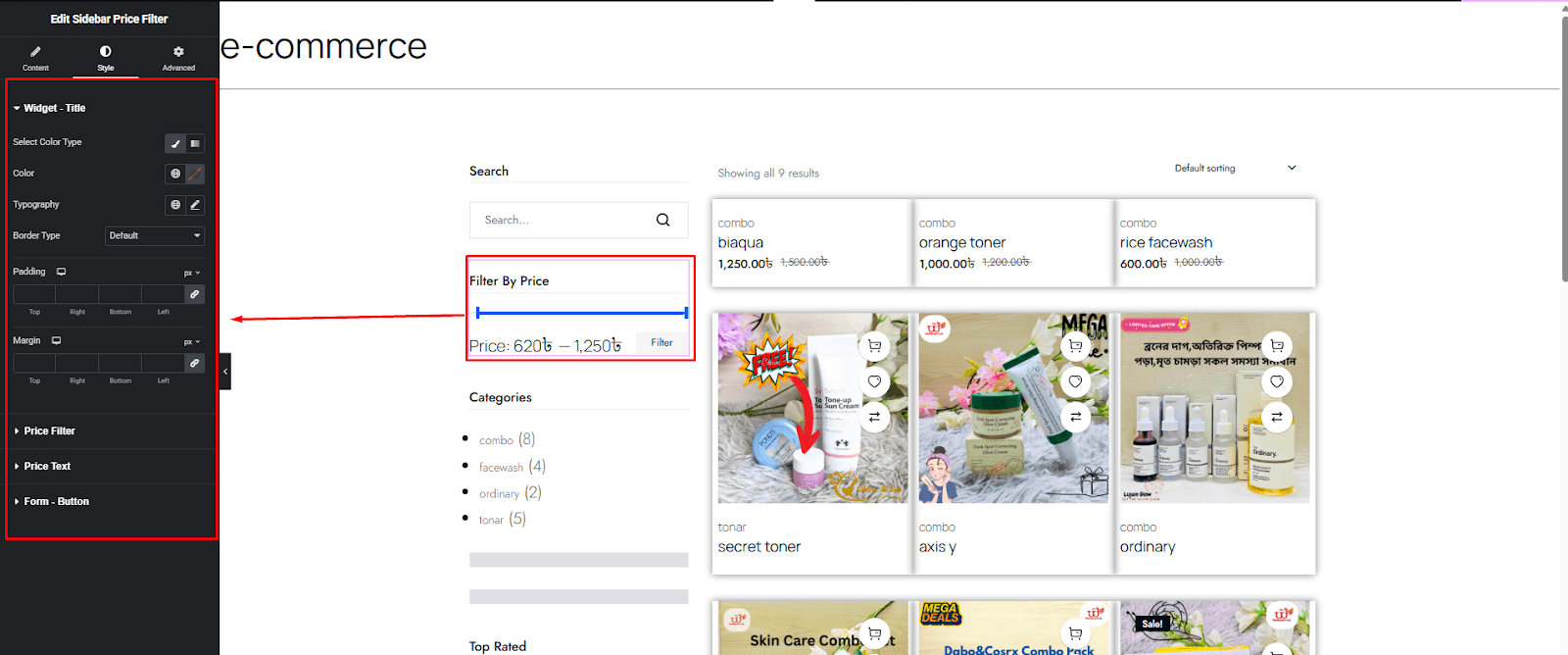
3. Customize Sidebar Price Filter
- Now, customize your sidebar price filter display with flexible styling options. Adjust font, size, colour, and typography to match your brand. Also, you can change button typography, background colour, box border, shadow, and border style that ensure clarity and visual appeal.
4. Customize Sidebar Product Category
- With StoreBuild, you can fully customize this field to enhance usability and match your store’s design. Adjust text font, size, colour, and typography to match your brand. Also, you can change button typography, background colour, box border, shadow, and border style that ensure visual appeal.

5. Customize the Sidebar Top-Rated Product list
- The top-rated product list is an important element of your WooCommerce shop page, designed to drive conversions and enhance user experience. With StoreBuild, you can fully customize its appearance and functionality to match your store’s branding.
- Using the left sidebar, modify the font, button colour, size, hover effects, borders, box, price, rating, and thumbnail settings for a visually appealing design.

6. Customize the Sidebar Recent Product list
- Displaying Recent Product Recommendations helps enhance user experience and boost conversions. With Storebuild, you can customize the way related products appear on your WooCommerce shop page.
- You can fully customize the recent Product list to enhance usability and match your store’s design. Adjust text font, size, colour, and typography to match your brand. Also, you can modify the button colour, size, hover effects, borders, box, price, rating, and thumbnail settings for a visually appealing design.

7. Advanced Customization
The Advanced Customization options provide full control over your WooCommerce shop page design. Here’s a breakdown of what each setting offers:
- Layout: Adjust structure, positioning, and alignment.
- Motion Effects: Add dynamic animations and transitions.
- Transform: Apply scaling, rotation, and other transformations.
- Background: Modify colors, gradients, and images for a visually appealing design.
- Border: Customize border styles, thickness, and colors.
- Mask: Use creative masking techniques for unique visual effects.
- Responsive: Optimize design for different devices and screen sizes.
- Attributes: Add custom attributes for enhanced functionality.
- Custom CSS: Apply advanced styling for a fully tailored appearance.

Finally, here’s the complete version of our WooCommerce shop page. It includes all the info that a customer needs to know about your brand, and visibility is also in the proper layout.
Optimizing for SEO and Performance
A well-optimized WooCommerce shop page increases visibility and improves user experience, leading to higher engagement and conversions. StoreBuild provides essential tools to enhance SEO and improve performance without requiring complex technical skills.
Structuring Your Shop Page for SEO
A clear structure helps search engines understand your content. StoreBuild allows users to organize product categories, descriptions, and metadata effectively. Adding relevant keywords in product titles, descriptions, and alt text for images improves search rankings.
Improving Page Speed and Load Time
A fast-loading shop page keeps visitors engaged. StoreBuild ensures efficient coding and provides optimized WooCommerce elements that help reduce unnecessary page load delays. Compressing images, minimizing excessive scripts, and using caching techniques can further improve speed.
Mobile-Friendly and Responsive Design
Search engines prioritize mobile-friendly websites. StoreBuild enables users to create fully responsive layouts that adjust across devices. Ensuring touch-friendly navigation and optimized product images improves the mobile experience.
Increase User Experience for Better SEO
A well-designed shop page encourages visitors to browse longer, reducing bounce rates. Using StoreBuild’s customizable layouts, users can create easy-to-navigate product grids, search filters, and intuitive menus. Clear call-to-action buttons and optimized checkout processes improve conversions.
Continuous Optimization
Regular updates and SEO audits help maintain rankings. StoreBuild supports real-time editing, allowing users to test and refine designs instantly. Integrating analytics tools helps monitor performance and adjust SEO strategies as needed.
Conclusion
StoreBuild simplifies the design process, allowing users to create a professional and fully customized store without coding. With its drag-and-drop editor, Elementor widgets, and pre-made templates, StoreBuild helps users build engaging product pages, checkout processes, and intuitive navigation. Whether launching a new store or refining an existing one, StoreBuild ensures a smooth shopping experience for customers.
Ready to elevate your eCommerce store? Try StoreBuild today and create a shop page that stands out and drives conversions!
(FAQ)—Full WooCommerce Shop Page Design
Here’s a Frequently Asked Questions (FAQ) guide on WooCommerce shop Page Design, addressing common queries and providing useful insights:
How can I edit my WooCommerce shop page using Elementor?
Elementor allows you to customize your WooCommerce shop page visually. You can use the WooCommerce widgets in Elementor Pro to modify the layout, add product grids, and enhance the design without coding.
Can I edit my WooCommerce shop page in Word?
WooCommerce shop pages are built within WordPress, so direct editing in Microsoft Word isn’t possible. However, you can draft your content in Word and then format it within WordPress using the block editor or Elementor.
How do I customize my WooCommerce shop page for free?
You can customize your shop page for free using the WordPress Customizer, WooCommerce shortcodes, or free page builders like Elementor (basic version). Some free plugins also allow basic modifications.
What is a WooCommerce shop page template?
A WooCommerce shop page template is a predefined layout that determines how products are displayed. You can modify it using theme settings, page builders, or custom coding.
How do I customize my WooCommerce shop page layout?
You can customize the layout using
- Page builders like Elementor or StoreBuild
- WooCommerce shortcodes to display products dynamically
- Custom CSS to adjust styling
- Theme settings if your theme supports WooCommerce customization
How do I create a product page in WooCommerce?
You can create a product page by navigating to Products > Add New in WordPress. Define essential details such as title, description, price, images, and any additional attributes needed for your store.
What are the best free tools for designing a WooCommerce single product page?
You can use StoreBuild or the built-in WooCommerce editor to structure and customize product pages without additional costs. These tools provide flexibility in layout and styling.
Can I create a unique design for each WooCommerce product page?
Absolutely! With StoreBuild, you can customize individual product pages separately, allowing tailored designs for different products.
How do I optimize a WooCommerce product page for SEO?
Enhancing SEO requires
- Keyword optimization for product titles and descriptions
- Structured data to improve search engine visibility
- Fast page speed for a better user experience
- Compelling meta descriptions to attract clicks
- Mobile-friendly design for accessibility