


Setting up WordPress on your local computer is an excellent way to explore and build websites without needing a live server. This guide will walk you through how to install WordPress on localhost using XAMPP, providing a secure environment for testing and development.
Running WordPress locally utilizes your device’s internal resources, making it ideal for experimentation before launching a live site.
In this article, we cover the step-by-step installation process while exploring the functionality of XAMPP software to help you get started smoothly. Whether you’re a beginner or an experienced developer, this tutorial will make setting up WordPress easy and accessible.
Components of XAMPP
XAMPP includes the essential components required to run a WordPress site locally:
- Apache: The web server that processes and delivers website content.
- MySQL: The database system that stores all WordPress data, including posts, user information, and site settings.
- PHP: The scripting language WordPress is built on, allowing dynamic functionality.
- phpMyAdmin: A web-based tool to manage MySQL databases efficiently.
Why Use XAMPP for Local WordPress Installation?
Using XAMPP to install WordPress locally offers several advantages:
- No hosting required: Develop and test websites without purchasing a domain or web hosting plan.
- Safe and offline environment: Experiment with themes, plugins, and customizations before applying changes to a live site.
- Faster development: Make modifications can be made quickly without waiting for server responses.
- Ideal for learning: Beginners can explore WordPress features and functionalities without the risk of breaking a live site.
Why Install WordPress Locally?
Setting up WordPress on your local computer offers numerous advantages, making it an essential step for beginners and professionals looking to refine their website before going live. If you’re wondering how to install WordPress on localhost, here’s why it’s beneficial:
- Safe Testing and Experimentation: Running WordPress on a local environment lets you explore themes, plugins, and configurations without affecting a live website.
- Offline Development: Unlike a hosted site, a localhost setup does not rely on internet connectivity, ensuring seamless development without interruptions.
- Cost-Effective Solution: Installing WordPress locally removes the need for hosting services, making it a budget-friendly way to build and test websites before deployment.
- Debugging and Troubleshooting: Developers can easily detect and resolve plugin, theme, or configuration issues in a local WordPress setup, ensuring a smoother experience when launching the website online.
How to Install WordPress on Localhost? [Step-by-Step Guide]
Setting up WordPress on localhost is a great way to test and develop websites before going live. Here’s a step-by-step guide to help you install WordPress on your local machine using XAMPP:
Step 1: Download XAMPP Software
- To install WordPress on localhost, the first step is to download XAMPP, which provides the necessary server environment.


Download XAMPP Software
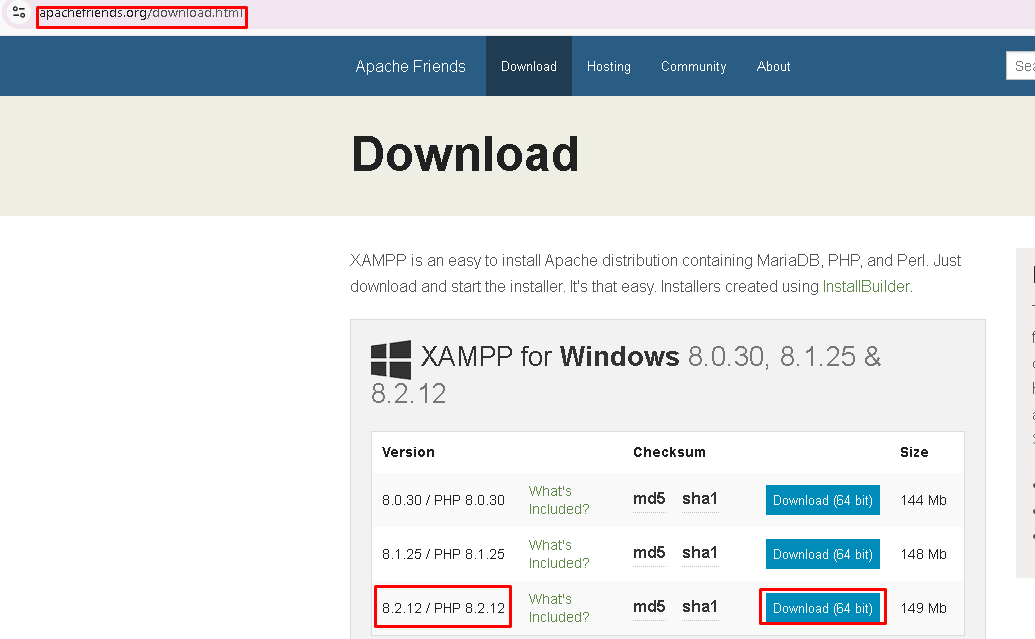
- Access the Official Website: Open your preferred web browser and navigate to Apache Friends.
- Select Your OS: Pick the XAMPP version compatible with your operating system (Windows, macOS, or Linux).
- Get the Installer: Click the download button to obtain the installation file for your system.
Step 2: Install and Run the XAMPP Server on Localhost
- Locate the Installation File: After the download is complete, find the installer package (e.g., xampp-windows-x.x.x.exe for Windows).
- Start the Installation: Double-click the setup file to launch the installation process. If prompted by a security warning, select Yes to proceed.
- Proceed through the Setup Guide: Follow the step-by-step instructions provided by the installation wizard to complete the setup
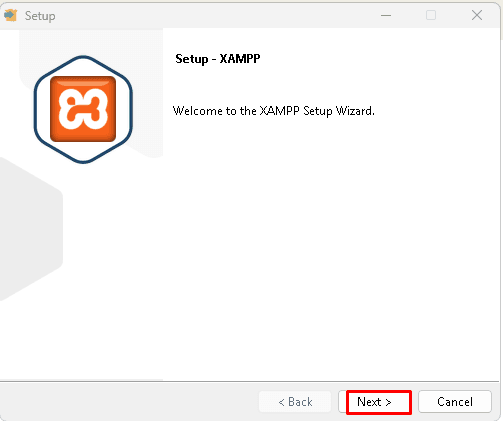

- When installing XAMPP, choose the standard set of components, which includes Apache, MySQL, PHP, and other necessary services, for optimal compatibility with the majority of WordPress installations. By leaving the default settings specified, you can run your site locally in a stable environment.


- Use the default location (e.g., C:\xampp on Windows) for a hassle-free setup and smooth operation of XAMPP.


- Go through the setup steps by clicking Next, and once everything is installed, click Finish to complete the process.


Launch and Verify XAMPP
- Access the XAMPP Control Panel: On Windows, open XAMPP from the Start menu; on macOS, find it in the Applications folder.
- Start Apache and MySQL: To activate the necessary services, click Start next to Apache and MySQL in the control panel.
- Verify Running Services: After the services are launched, the status indicators ought to become green, indicating that both parts are operating as intended.
Step 3: Run the Modules to Test the Server
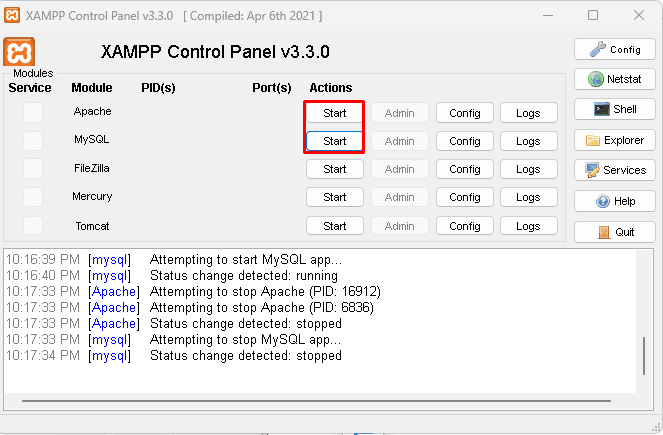

- Ensure Apache & MySQL are running: Start both services in the XAMPP Control Panel.
- Test localhost functionality: Open a browser and go to http://localhost/ to confirm the server is active.

Step 4: Download the Latest WordPress Version


- Go to the WordPress.org website, the official source for WordPress software.
Locate the Get WordPress Button
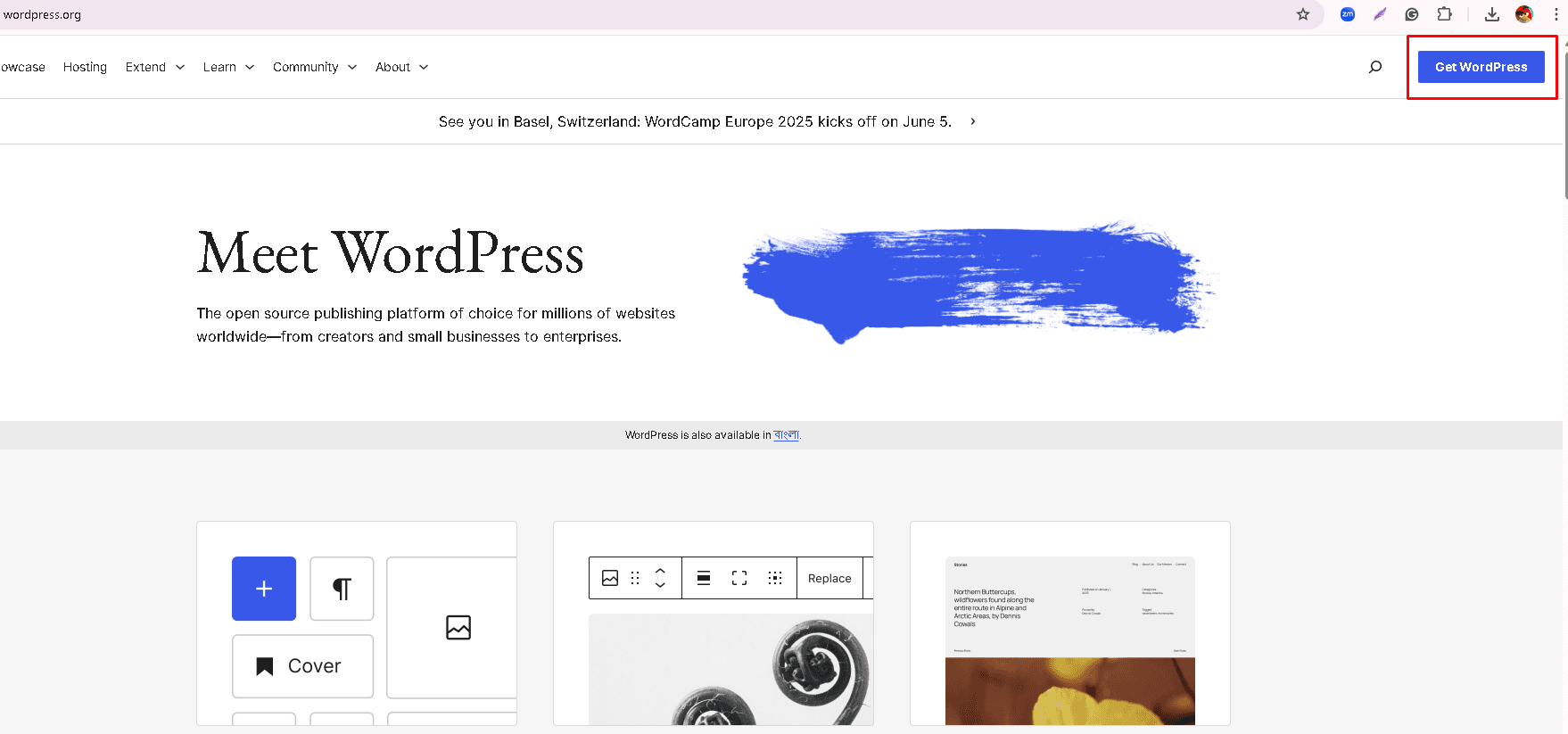

- On the homepage, you’ll see a prominent “Get WordPress” or “Download WordPress” button. Click on it to navigate to the download page.
Choose the Latest Version
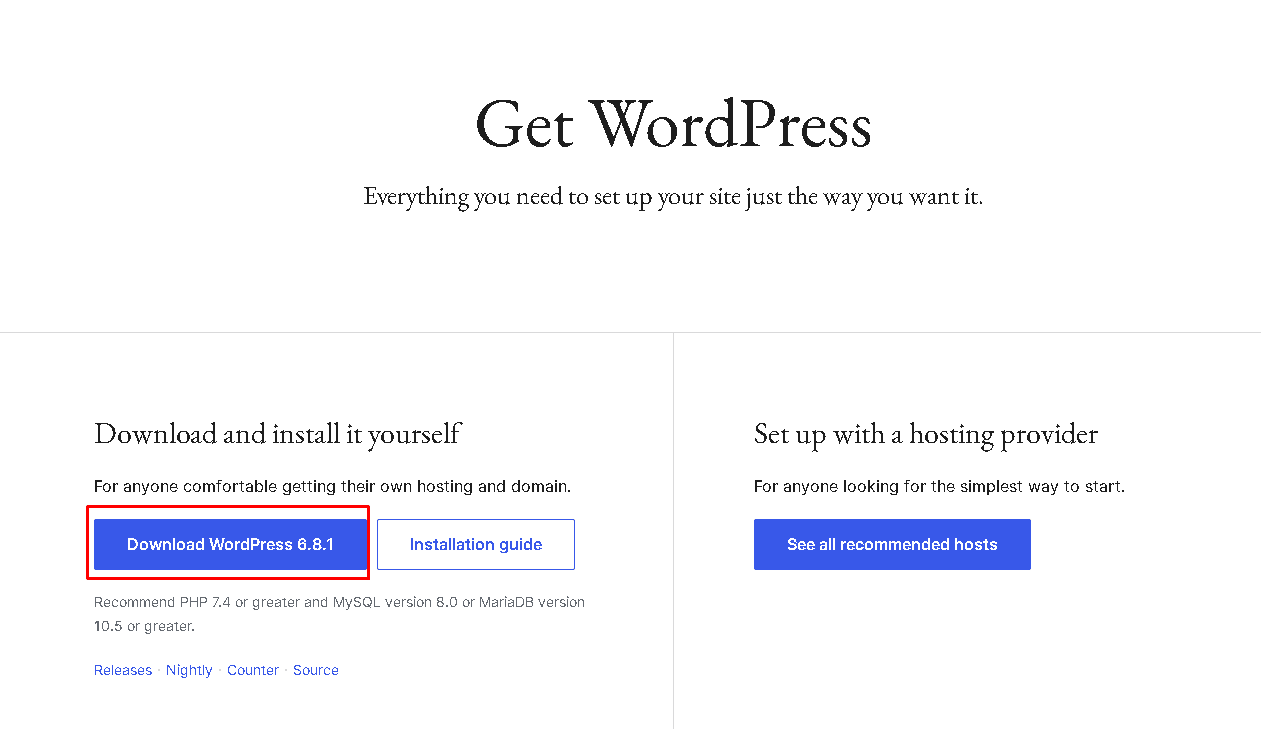

- You can download the latest version of WordPress from the official WordPress website (https://wordpress.org/).
Extract the Files
- Once the download is complete, locate the .zip file in your Downloads folder (or the folder you specified).

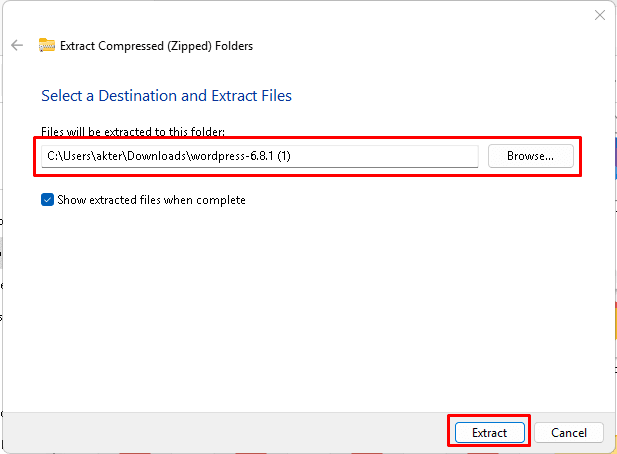
- Right-click the file and select “Extract All” or use any file extraction software to unzip its contents.
Place WordPress Files in the Localhost Directory
- After extraction, move the WordPress folder to the appropriate directory in your local development tool.


- Paste the extracted WordPress folder into the htdocs directory within the location where you installed XAMPP.
Ready for Installation
- You can now move further with the localhost installation of WordPress since the files are now available.
Step 5: Create a Database
- To create a database for WordPress on localhost using XAMPP, follow these steps:
Access phpMyAdmin


- Press Enter to load the phpMyAdmin interface. This is a built-in tool in XAMPP for managing MySQL databases.
Navigate to Databases


- In the phpMyAdmin dashboard, click on the Databases tab located at the top menu.
Create a new database


- Under “Create database,” type a name for your database. For example, you could name it wordpress.
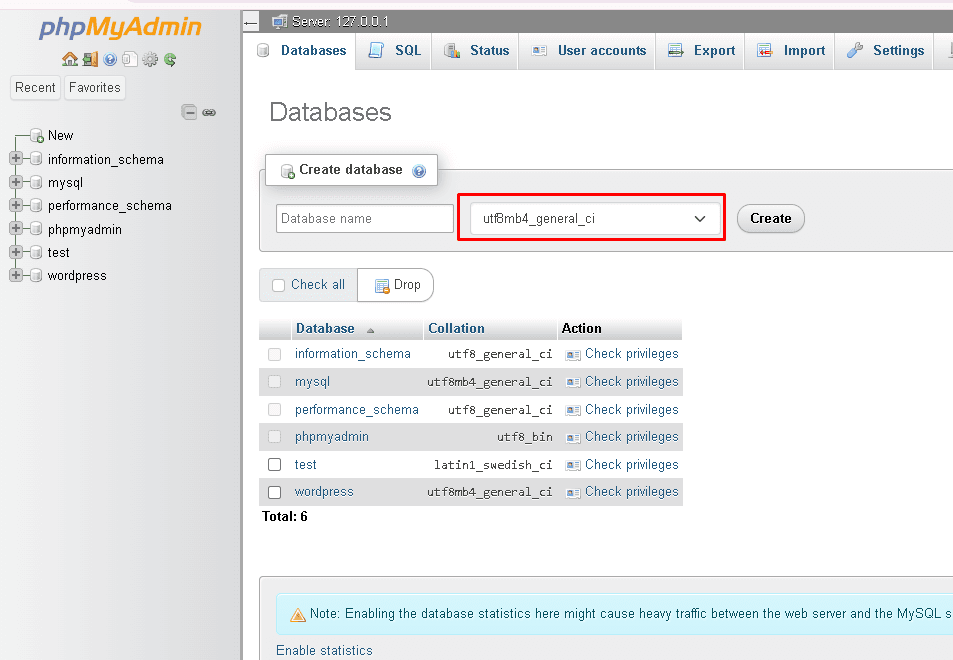

- Choose the database collation as utf8_general_ci to ensure compatibility with WordPress.


- Click Create to finalize.
Verify Database Creation


- Once created, your new database should appear in the list of databases on the left-hand side of phpMyAdmin.
Step 6: Install WordPress on the Localhost
You’re almost there! Follow these steps to install WordPress on your localhost:
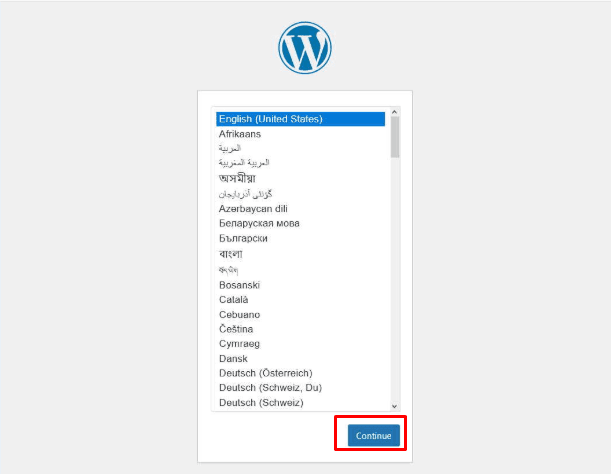

- Select your preferred language and click Continue.


- Click Let’s Go to proceed with the setup.
Enter Database Details
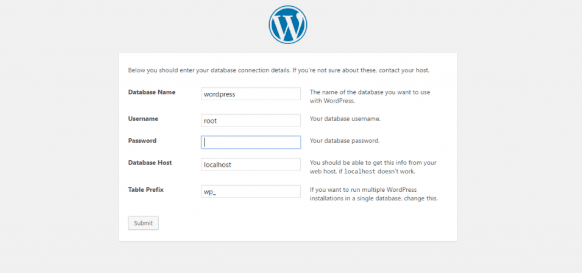

- Database Name: The name you created in phpMyAdmin (e.g., wordpress_db).
- Username: root (default for XAMPP).
- Password: Leave it empty (default for XAMPP).
- Database Host: localhost.
- Click Submit.
Complete the Installation
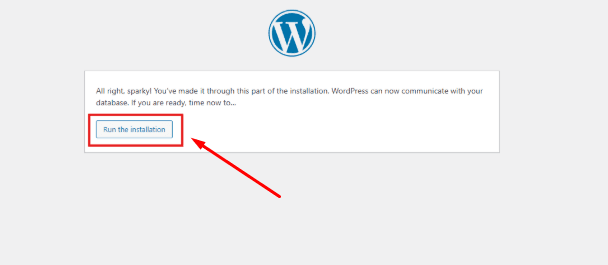

- Click Run the Installation.
- Enter your Site Title, Username, Password, and Email.
- Click Install WordPress.
Log in to WordPress
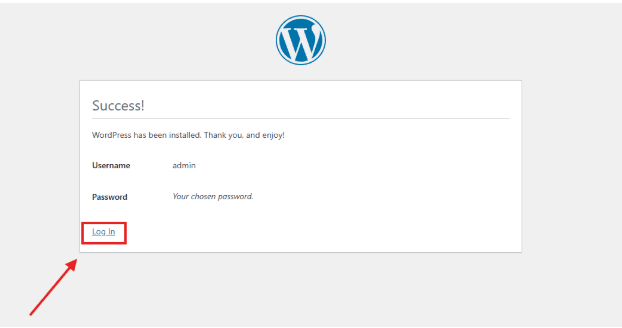

- Once the installation is complete, you’ll see a success screen with a login button.
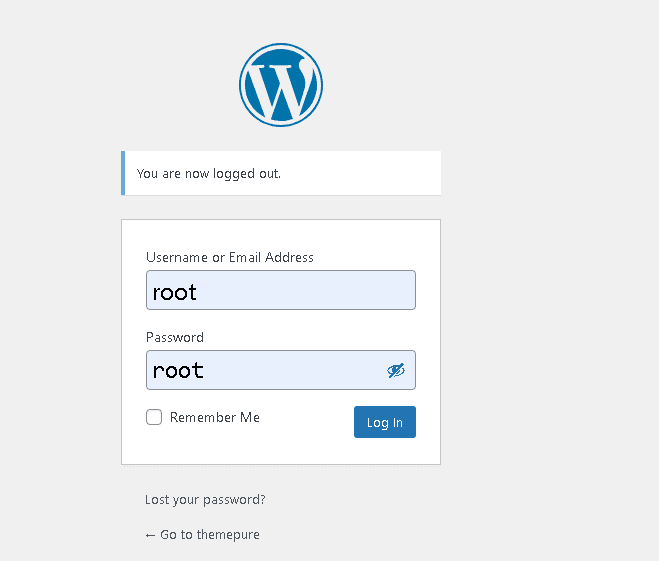

- Click Log In to access the WordPress dashboard and use your admin username and password.
How do you add themes and plugins on Localhost?
Adding themes and plugins to your local WordPress site is a great way to customize and enhance its functionality. Here’s how you can do it:
- From the WordPress Dashboard
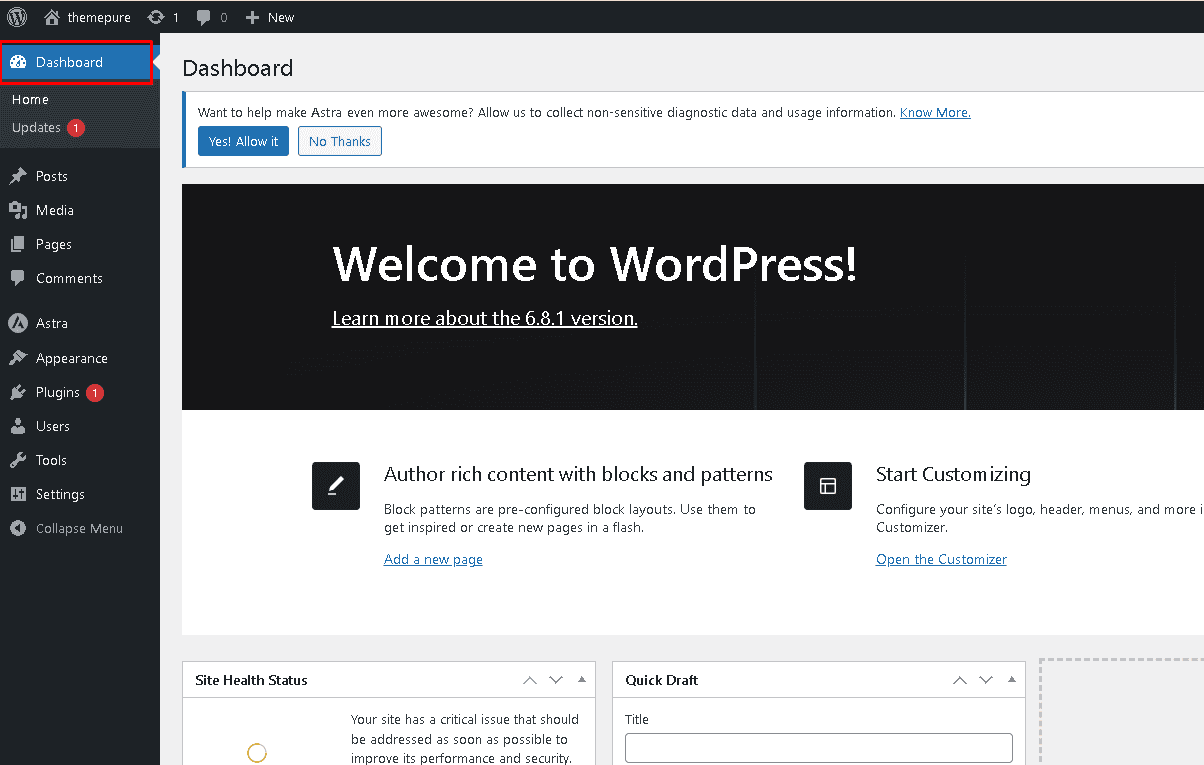

- Go to Appearance > Themes
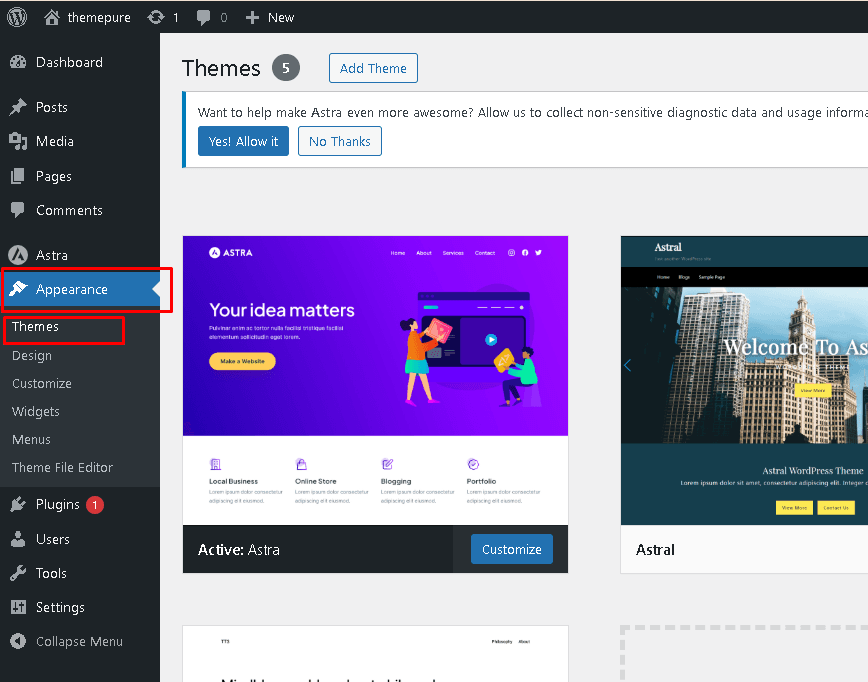

- Click Add New and browse available themes


- Click Install and then Activate the theme
How to Add Plugins
From the WordPress Dashboard
- Navigate to Plugins > Add New


- Search for the plugin you want.


- Click Install Now and then Activate


Extra: How to uninstall Xampp on localhost


- Open the Windows Control Panel and go to Programs and Features.
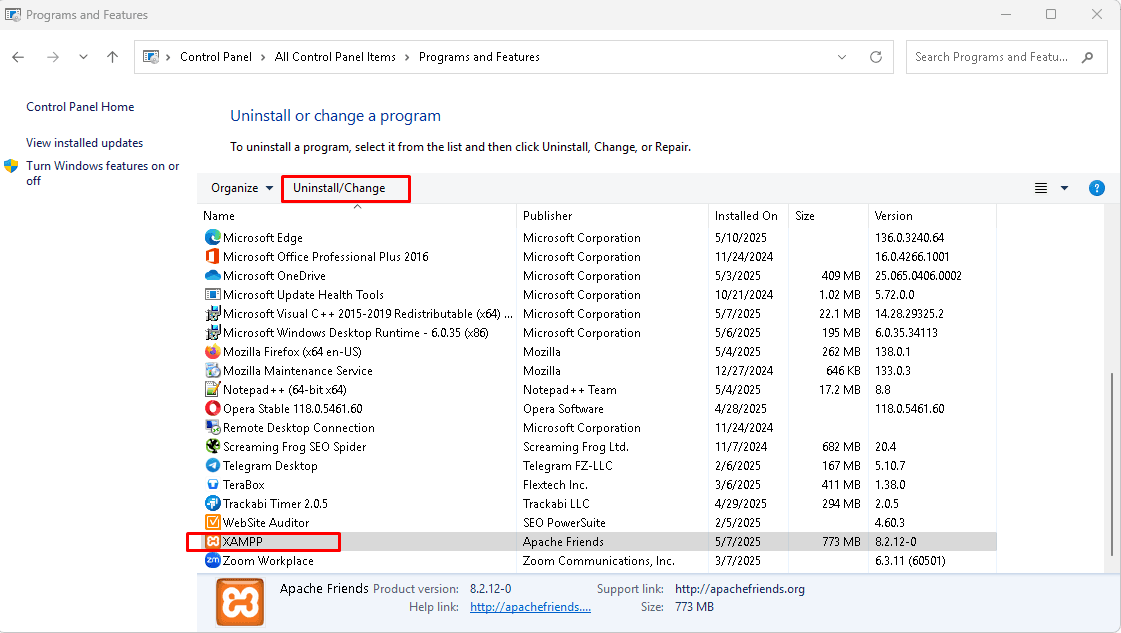

- Find XAMPP in the list, click on it, and select Uninstall.
Conclusion
Platform-driven tools like XAMPP are excellent for building WordPress sites on your local system. The installation is quick, and once set up, you can design pages, publish content, and structure your complete website effortlessly.
We’d love to hear from you! Share your experience, challenges, and insights in the comments below.
FAQ Section:
1. What is XAMPP, and why do I need it for WordPress?
XAMPP is a free software package that provides Apache, MySQL, and PHP—everything needed to run WordPress on your local computer without an internet connection.
2. Can I install WordPress on localhost without XAMPP?
Yes, but you’ll need separate software for Apache, PHP, and MySQL. XAMPP simplifies the process by bundling everything together.
3. How do I install XAMPP on my computer?
Download XAMPP from the official website, install it, and start the Apache and MySQL services from the control panel.
4. Can I use plugins and themes in a localhost WordPress site?
Yes! Your local WordPress works just like a live website, allowing you to install and test plugins and themes before going online.
5. Can I move my localhost WordPress site to a live server?
Yes. Use migration plugins or manually export your database and WordPress files to move your site online.
6. Is my localhost WordPress site visible to others?
No, a localhost site runs only on your device unless you configure network settings or move it to a live server.
If you liked this article, don’t forget to subscribe to our newsletter to get more exciting articles, news, and offers right in your inbox. Also, follow us on Facebook, Instagram, and LinkedIn to stay updated.