


WooCommerce is a powerful choice for launching your eCommerce store, providing all the essential pages right from the start. This allows you to focus on adding products, configuring payment options, and setting up shipping.
However, the default WooCommerce shop page isn’t fully optimized for conversions and branding. Customization is key to maximizing sales and creating a smooth shopping experience.
The challenge? WooCommerce offers limited built-in options for shop page customization, making it difficult for beginners and non-technical users to achieve a unique and fully functional design.
This blog will guide you through effective yet beginner-friendly techniques to edit and customize your WooCommerce shop page. Whether you want to improve styling or integrate advanced features, we’ll show you a straightforward process—no complex coding required.
Methods to Edit Your WooCommerce Shop Page
WooCommerce offers several ways to customize your shop page, from beginner-friendly options to advanced coding techniques. Below are effective methods, along with their advantages and challenges.
Using Page Builders (StoreBuild)
For those looking for an easy way to modify shop pages, the StoreBuild Addons Plugin for WooCommerce provides a user-friendly approach. With drag-and-drop functionality, you can adjust layouts, add product sections, and refine design elements without needing coding knowledge.
Customizing the WooCommerce Default Template
WooCommerce’s built-in shop page template allows some flexibility, but manual adjustments can be challenging. While it offers the ability to modify elements through theme settings and WordPress Customiser, major changes require additional plugins or custom coding.
Using Shortcodes
Shortcodes provide a quick method to insert product grids, categories, and filters into your shop page. While helpful, placement and formatting can be tricky, requiring experimentation to achieve a well-structured layout.
Using a Custom PHP Template
For developers, creating a PHP template offers complete control over the shop page structure. This method allows extensive modifications but requires coding expertise, making it less suitable for beginners.
Using WooCommerce Hooks & Filters
Experienced users can apply WooCommerce hooks and filters to modify shop pages at a deeper level. These allow adjustments to product displays and custom content sections but require technical knowledge to implement correctly.
Manual CSS Styling
For minor design adjustments, CSS styling is a practical way to refine colours, fonts, and spacing. While it enhances visuals, CSS alone does not allow for structural changes.
This blog focuses on customising WooCommerce shop pages using the StoreBuild Addons Plugin—an easy solution for those wanting effective modifications without technical barriers.
Why?
Since it’s the simplest and most efficient way! You can completely customize your WooCommerce shop page without knowing any code, thanks to drag-and-drop capabilities. This method is easy to learn, saves time, and guarantees that your store looks beautiful while increasing conversions.
Page Builders provide you control without the complexity of other approaches; other methods require technical knowledge or more effort.
Preview of WooCommerce Shop Page
In order to achieve the style seen in the product page image below, we will build the shop page using the page-building method. Every component will be carefully placed to provide a smooth and engaging experience.


Steps to Build a WooCommerce Shop Page
- Step 1: Create a WooCommerce Shop Page Template
- Step 2: Customize Your Shop Page Template Layout
- Step 3: Design WooCommerce Shop Page Template
Installing a few necessary tools is required before we begin the major steps to create a WooCommerce shop page using the Page Builders method; if these are already installed, it is not required.
Essential Tools for Creating WooCommerce Single Product Page
To design and customize a WooCommerce single product page efficiently, the best tools to use are
Elementor: A powerful drag-and-drop page builder that makes it simple to create and modify product pages without knowing any code.
Storebuild: 40 widgets and eCommerce tools are included in this comprehensive WooCommerce toolbox to help you optimise the design and usability of your shop page.
So if you haven’t installed it, install it now and get started.
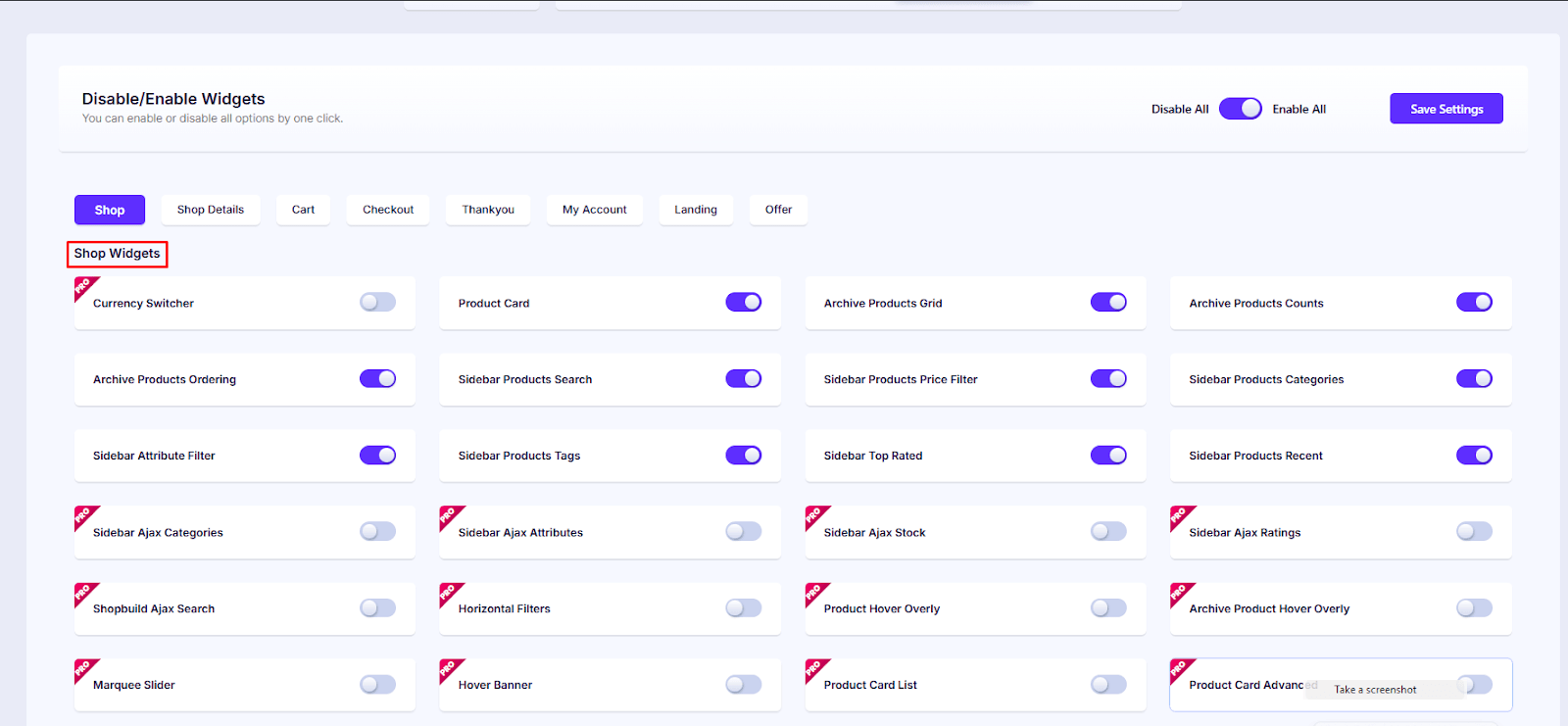
Important Setup Step: Make sure the modules and widgets you want to use are enabled before starting the design.
- Go to StoreBuild >> Widgets & Modules
- Toggle on the necessary widgets & modules
- Click Save Settings
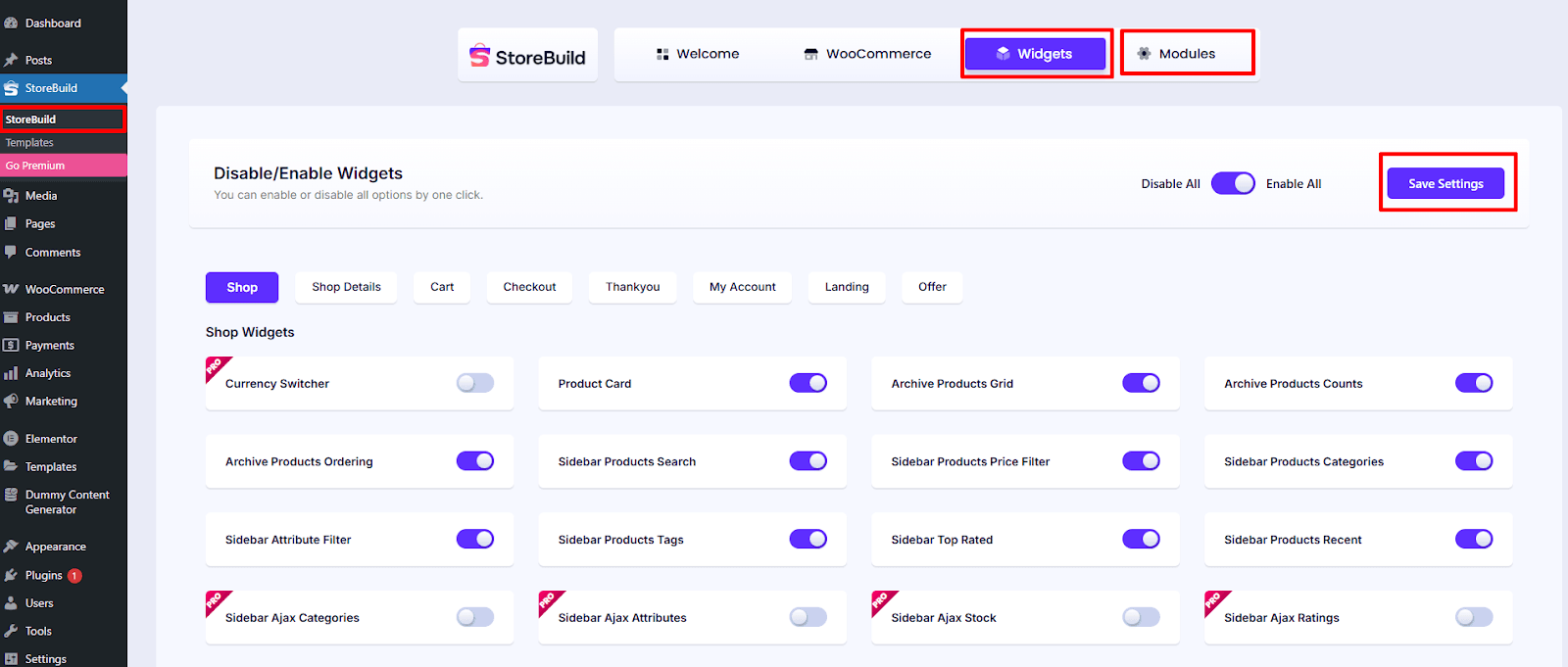

Now, you’re ready to start creating and customizing a completely unique WooCommerce shop page.
Step 1: Create a WooCommerce Shop Page Template
To create a custom WooCommerce Shop page template using StoreBuild, follow these steps:
1. Open StoreBuild
- In your WordPress dashboard, navigate to StoreBuild > Templates.
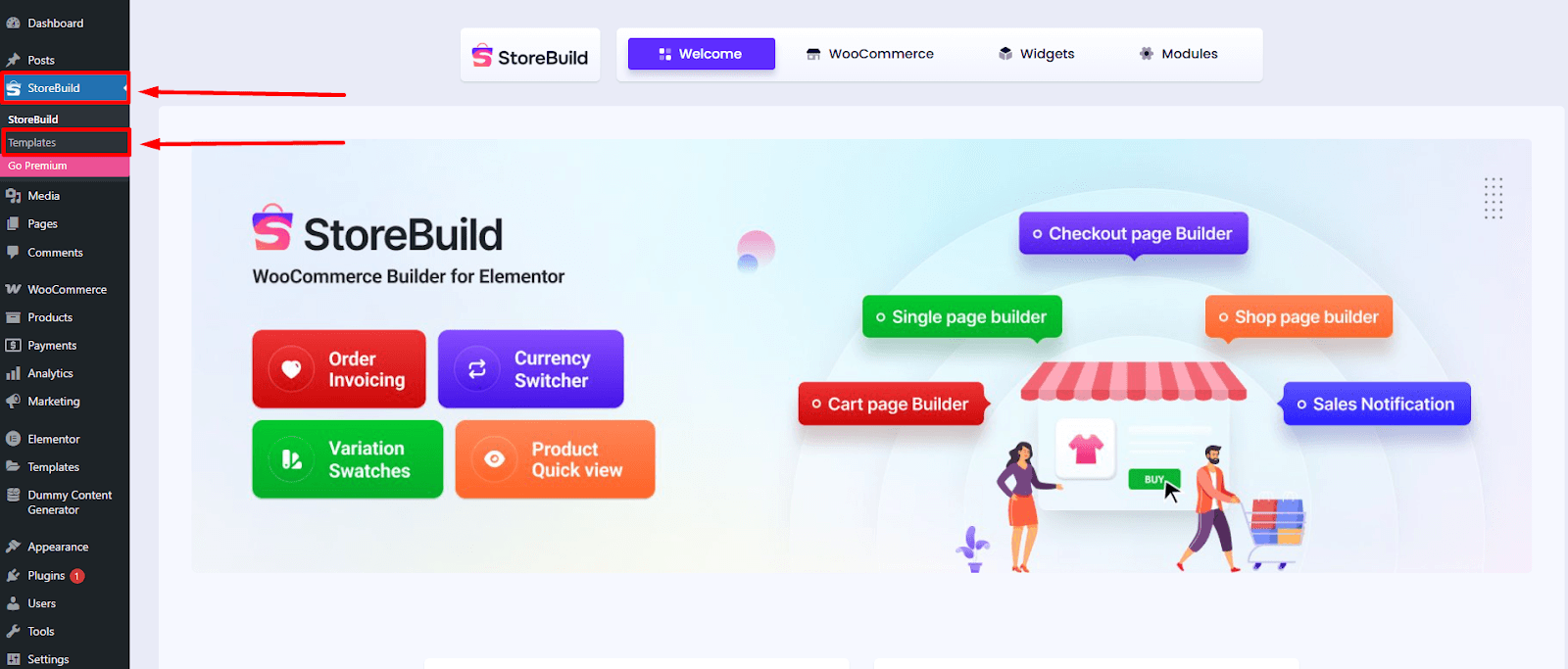

- Click on Add New Template to start creating a new template.


2. Set Up the Template
- Enter a name for your template to keep it organized.
- Choose Type: “Shop” for your WooCommerce Shop page.
- Select a Shop template for your WooCommerce Shop page. Choose a format that best fits your store’s style and product presentation.
- Click Save Template to complete the setup.
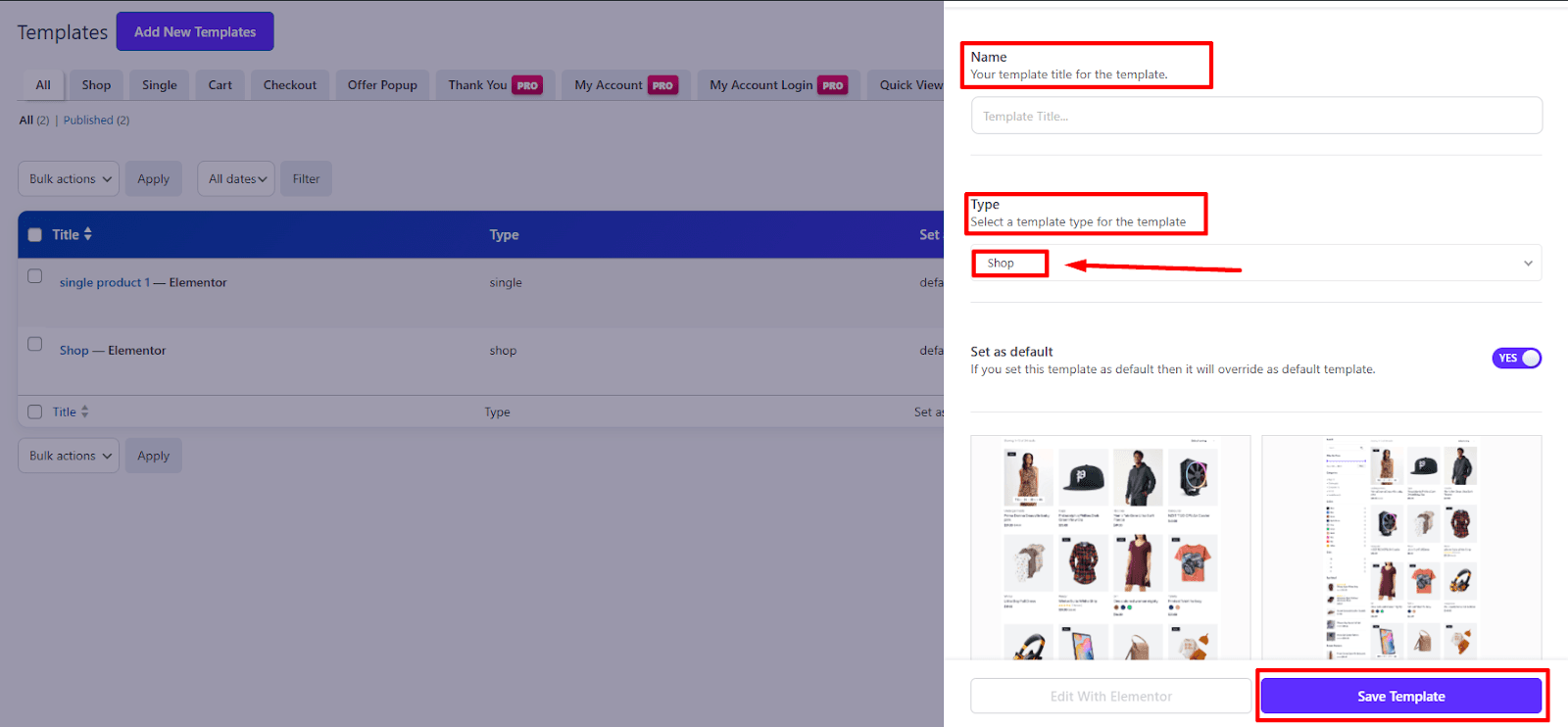

- For editing your shop page template, click on Edit with Elementor
- Then your shop page design will open on Elementor Editor.


Step 2: Customize Your WooCommerce Shop Page Template Layout


Note: Here, you can create a Shop page in two dynamic ways. You have two options: use StoreBuild’s pre-made Shop page, which allows you to modify and personalize the entire layout to your liking, or start from scratch by picking specific parts from the widget.
In this guide, we explain how to easily edit the pre-made page to produce a beautiful, completely customized WooCommerce Shop page.
- Go to the Products option.
- Click on “Add New Product”.
- Add all of your products.


- Your uploaded products will be showcased on the shop page.
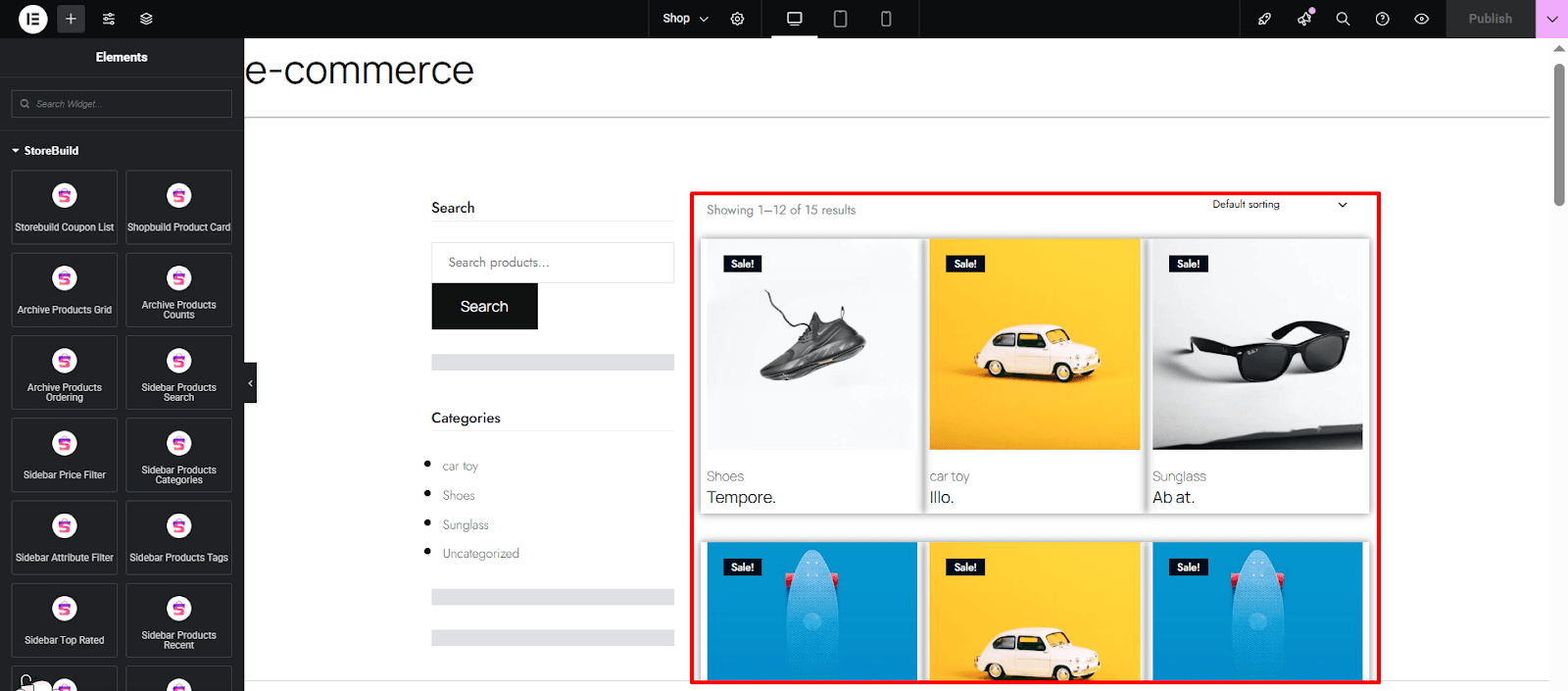

- Your selected template is a ready-made shop page, but you can customize each element & layout as you like by using widgets.
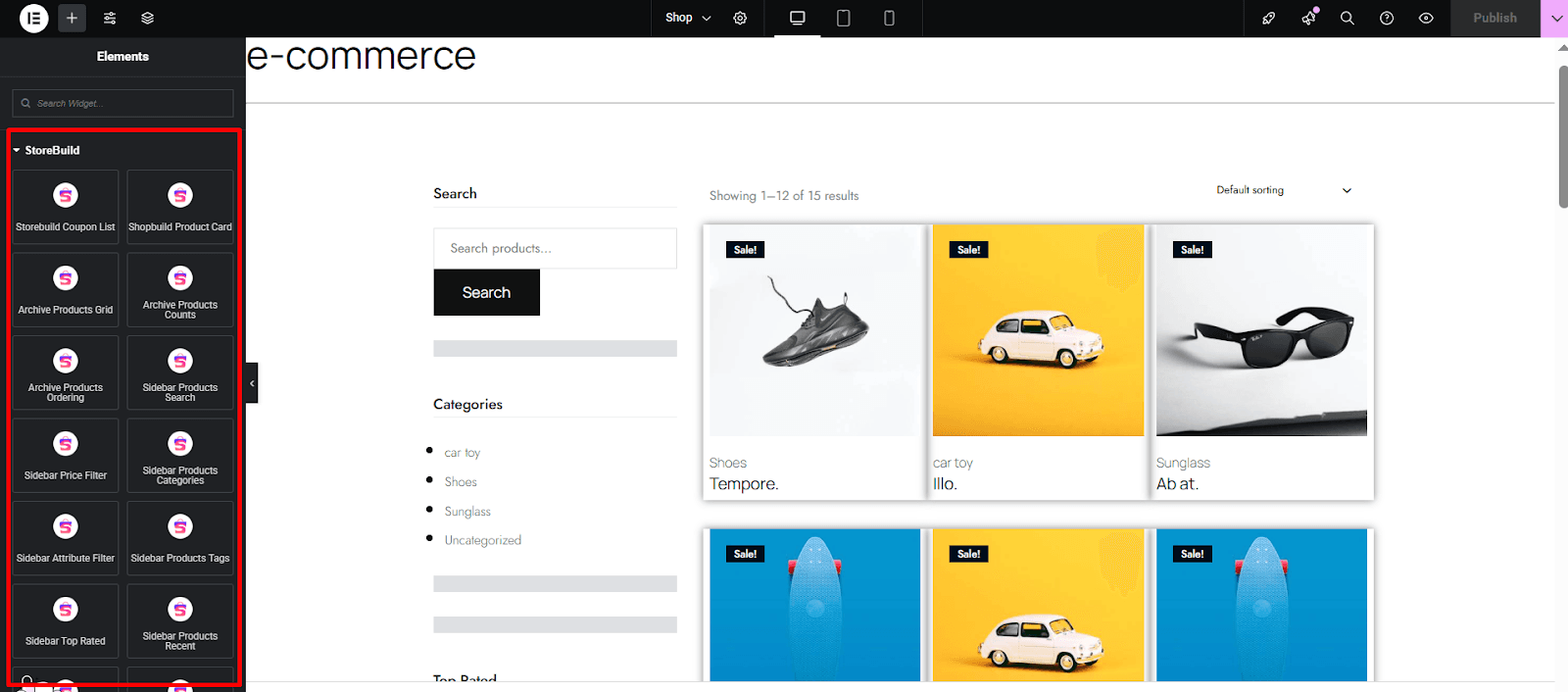

Step 3: Design WooCommerce Shop Page Template
Now it’s time to design and style your shop page using StoreBuild widgets. Here’s how to easily design for a better shopping experience:
1. Widgets for WooCommerce Shop page design
After selecting a layout, if you prefer not to use the ready-made shop page from StoreBuild, you have complete freedom to arrange widgets in any order, crafting your WooCommerce shop page exactly as you envision.
With 40+ powerful widgets at your disposal—including Currency Switcher, Product Card, Archive Products Grid, Archive Product Counts, Archive Products Ordering, Sidebar Products Search, Sidebar Products Categories, Sidebar Attribute Filter, Sidebar Top Rated, Sidebar Products Recent, and more—you gain total creative control to build a fully customized, high-converting shop page.

2. Customize Archive Products Grid
- With the Product Card settings, you have complete control over Product Style type, Content Align adjustments. Modify the Product title & price, Align, Hide/Show Category, Enable Rating? & Action Style to craft a design that aligns perfectly with your store’s theme.

- With the Query Product settings, you can include categories & exclude categories. Modify the include or exclude any products, category limit, pagination, and alignment of the product to craft a design that aligns perfectly with your store’s theme.

- With the Product Column settings, you can change the column gap & row gap. Modify the column for desktop, column for large, column for Tablet, column for mobile, column for extra small, and alignment of the column to craft a design that aligns perfectly with your store’s theme.


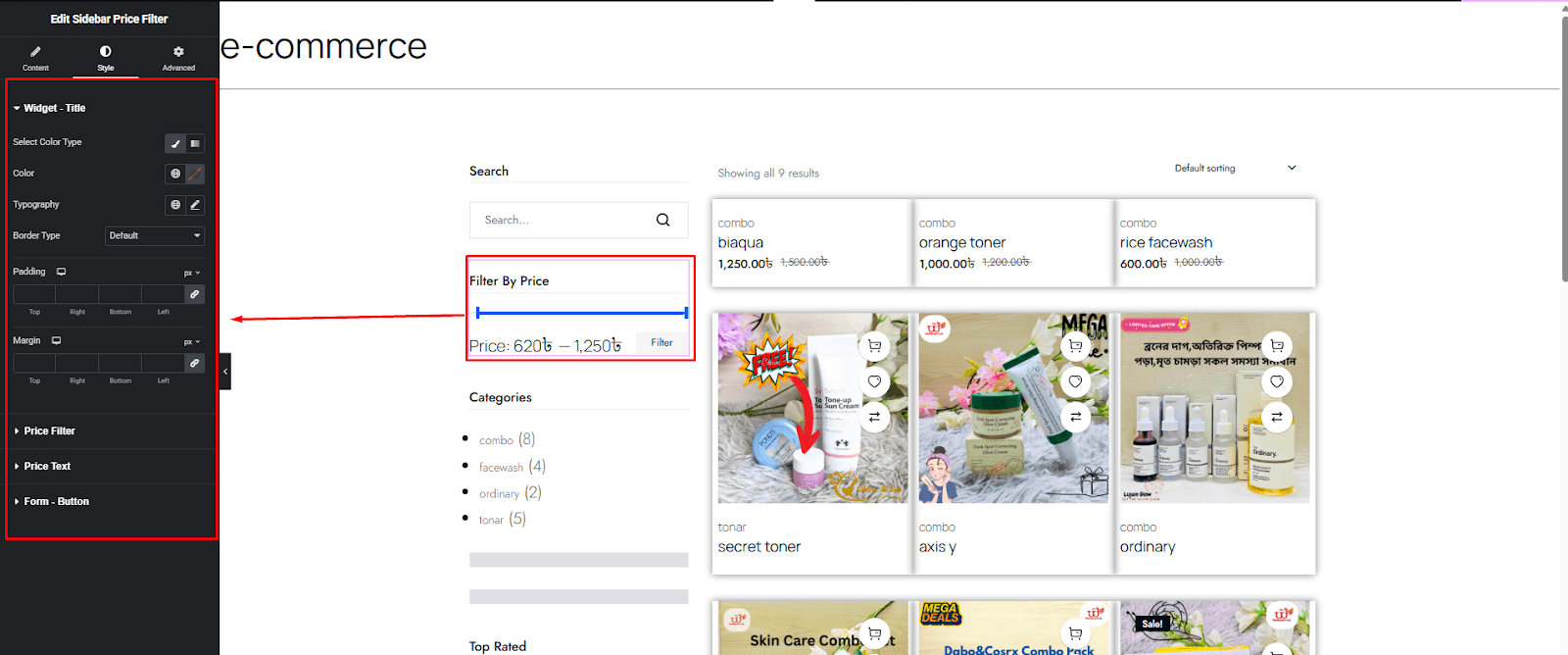
3. Customize Sidebar Price Filter
- Now, customize your sidebar price filter display with flexible styling options. Adjust font, size, colour, and typography to match your brand. Also, you can change button typography, background colour, box border, shadow, and border style that ensure clarity and visual appeal.

4. Customize Sidebar Product Category
- With StoreBuild, you can fully customize this field to enhance usability and match your store’s design. Adjust text font, size, colour, and typography to match your brand. Also, you can change button typography, background colour, box border, shadow, and border style to ensure visual appeal.


5. Customize the Sidebar Top-Rated Product list
- The top-rated product list is an important element of your WooCommerce shop page, designed to drive conversions and enhance user experience. With StoreBuild, you can fully customize its appearance and functionality to match your store’s branding.
- Using the left sidebar, modify the font, button colour, size, hover effects, borders, box, price, rating, and thumbnail settings for a visually appealing design.

6. Customize the Sidebar Recent Product list
- Displaying Recent Product Recommendations helps enhance user experience and boost conversions. With Storebuild, you can customize the way related products appear on your WooCommerce shop page.
- You can fully customize the recent Product list to enhance usability and match your store’s design. Adjust text font, size, colour, and typography to match your brand. Also, you can modify the button colour, size, hover effects, borders, box, price, rating, and thumbnail settings for a visually appealing design.


7. Advanced Customization
The Advanced Customization options provide full control over your WooCommerce shop page design. Here’s a breakdown of what each setting offers:
- Layout: Adjust structure, positioning, and alignment.
- Motion Effects: Add dynamic animations and transitions.
- Transform: Apply scaling, rotation, and other transformations.
- Background: Modify colors, gradients, and images for a visually appealing design.
- Border: Customize border styles, thickness, and colors.
- Mask: Use creative masking techniques for unique visual effects.
- Responsive: Optimize design for different devices and screen sizes.
- Attributes: Add custom attributes for enhanced functionality.
- Custom CSS: Apply advanced styling for a fully tailored appearance.


Finally, here’s the complete version of our WooCommerce shop page. It includes all the info that a customer needs to know about your brand and visibility is also in the proper layout.
Conclusion
Creating a WooCommerce shop page with storeBuild gives you full control over design and functionality. Whether you build from scratch or customize a pre-designed template, each detail helps shape and create a shop page.
(FAQ)—Edit and Customize Your WooCommerce Shop Page
Here’s a Frequently Asked Questions (FAQ) guide on the WooCommerce shop page customization, addressing common queries and providing useful insights:
How can I edit my WooCommerce shop page using Elementor?
Elementor allows you to customize your WooCommerce shop page visually. You can use the WooCommerce widgets in Elementor Pro to modify the layout, add product grids, and enhance the design without coding.
Can I edit my WooCommerce shop page in Word?
WooCommerce shop pages are built within WordPress, so direct editing in Microsoft Word isn’t possible. However, you can draft your content in Word and then format it within WordPress using the block editor or Elementor.
How do I customize my WooCommerce shop page for free?
You can customize your shop page for free using the WordPress Customizer, WooCommerce shortcodes, or free page builders like Elementor (basic version). Some free plugins also allow basic modifications.
What is a WooCommerce shop page template?
A WooCommerce shop page template is a predefined layout that determines how products are displayed. You can modify it using theme settings, page builders, or custom coding.
How do I customize my WooCommerce shop page layout?
You can customize the layout using:
- Page builders like Elementor or StoreBuild
- WooCommerce shortcodes to display products dynamically
- Custom CSS to adjust styling
- Theme settings if your theme supports WooCommerce customization
How do I create a product page in WooCommerce?
You can create a product page by navigating to Products > Add New in WordPress. Define essential details such as title, description, price, images, and any additional attributes needed for your store.
What are the best free tools for designing a WooCommerce single product page?
You can use StoreBuild or the built-in WooCommerce editor to structure and customize product pages without additional costs. These tools provide flexibility in layout and styling.
Can I create a unique design for each WooCommerce product page?
Absolutely! With StoreBuild, you can customize individual product pages separately, allowing tailored designs for different products.
How do I optimize a WooCommerce product page for SEO?
Enhancing SEO requires:
- Keyword optimization for product titles and descriptions
- Structured data to improve search engine visibility
- Fast page speed for a better user experience
- Compelling meta descriptions to attract clicks
- Mobile-friendly design for accessibility